

Short answer
Export macros to JSON or CSV, edit them if you need to, then import into the same or another Zendesk account. You preview every row, run a trial on a few macros, confirm, and download a journal of every change. New macros import as Inactive by default.
The manual way, and why it hurts
Zendesk has no built-in way to copy macros between accounts or edit dozens at once. The usual options are re-creating each macro by hand, or scripting the Zendesk API. Both are slow, and both make it easy to overwrite the wrong macro or switch on a half-finished one for every agent.
Macro Transfer gives you a reviewed path instead: export what you need, edit it with tools you already know, then import with a preview, a trial and a confirmation before anything is written.
Before you start
- Admins only. Every person who exports or imports must be a Zendesk administrator.
- Install it in each account involved. To move macros from a sandbox to production, install the app in both. You move the file between them; the app never signs in to another account for you.
- Know the limits. Import files can be up to 50 MB and 10,000 macros.
- Keep a backup. Export an unchanged copy before you edit anything.
Export macros
- Load your macrosOpen Macro Transfer from the navigation bar, choose Export macros and select Load macros.
- Choose what to exportSearch or sort the table, then select one, several or all available macros. Select search matches picks every macro your search finds.
- Download JSON or CSVJSON is the complete transfer format. CSV is easier to edit in a spreadsheet.
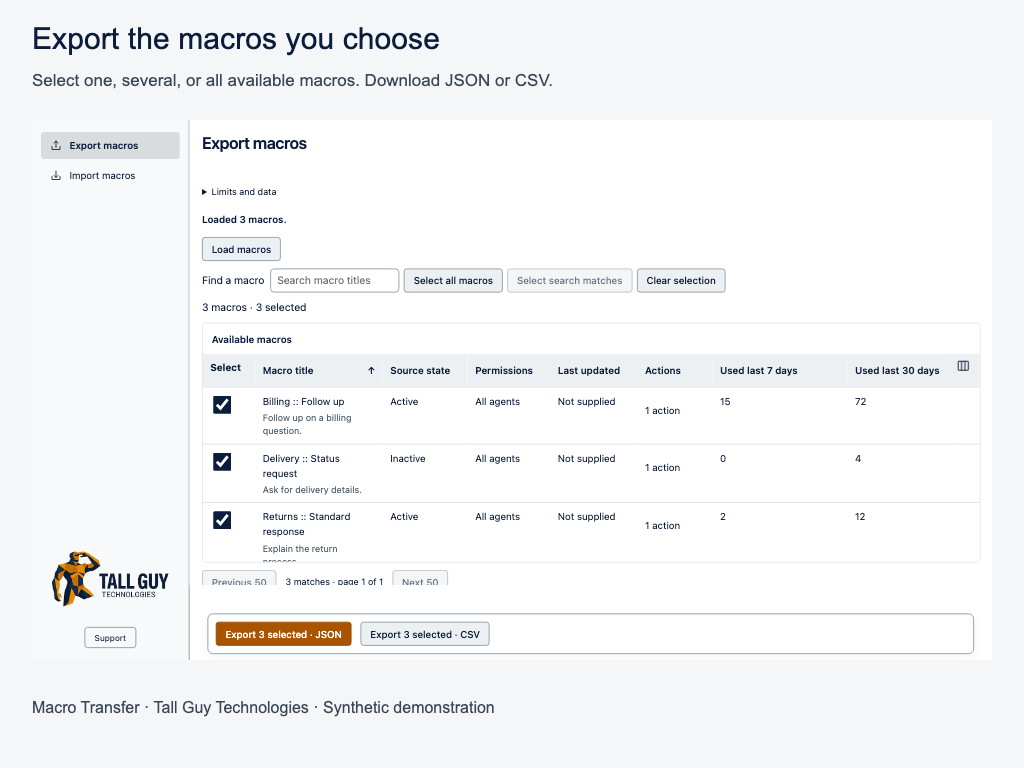
About the usage columns: “Used last 7 days” and “Used last 30 days” are for information only. A blank value means Zendesk didn’t supply it, not that the macro is unused.
Edit in bulk
Open the export in your spreadsheet or editor and make your changes: fix wording across many replies, tidy titles, or prepare a new set of macros for another team.
Three macros, ready to import
| Macro title | Agent description | Reply (plain text) |
|---|---|---|
| Billing :: Follow up | Follow up on a billing question | Thanks for your patience. We’ve checked your invoice and… |
| Delivery :: Status request | Ask for delivery details | Could you send your order number so we can check… |
| Returns :: Standard response | Explain the return process | You can return any item within 30 days… |
Column names and order don’t matter. You match each column to a field when you import.
Tip: For a CSV, use either an Actions (JSON) column or reply columns, not both. Action text can’t be guessed from plain words, so without an Actions column the app builds the reply action from your reply columns.
Import with a preview
- Open the app in the destination accountChoose Import macros and pick your JSON or CSV file. Zendesk macro JSON and CSV are both supported.
- Match CSV columnsMatch each column to a supported field and select Preview mapped macros. Columns marked Reference only are shown for context and not imported.
- Read the previewBlocked rows explain what needs attention. Fix the source file and upload it again when needed. Nothing is saved at this stage.
- Decide on matching titlesIf a macro with the same title already exists, Skip is the default. Choose Update only when you mean to change that destination macro.
- Choose reply options and statePlain text is included as supplied by default; you can also generate missing plain text from HTML, or leave plain text out. New macros are Inactive by default; choose Active only when they’re ready for agents.
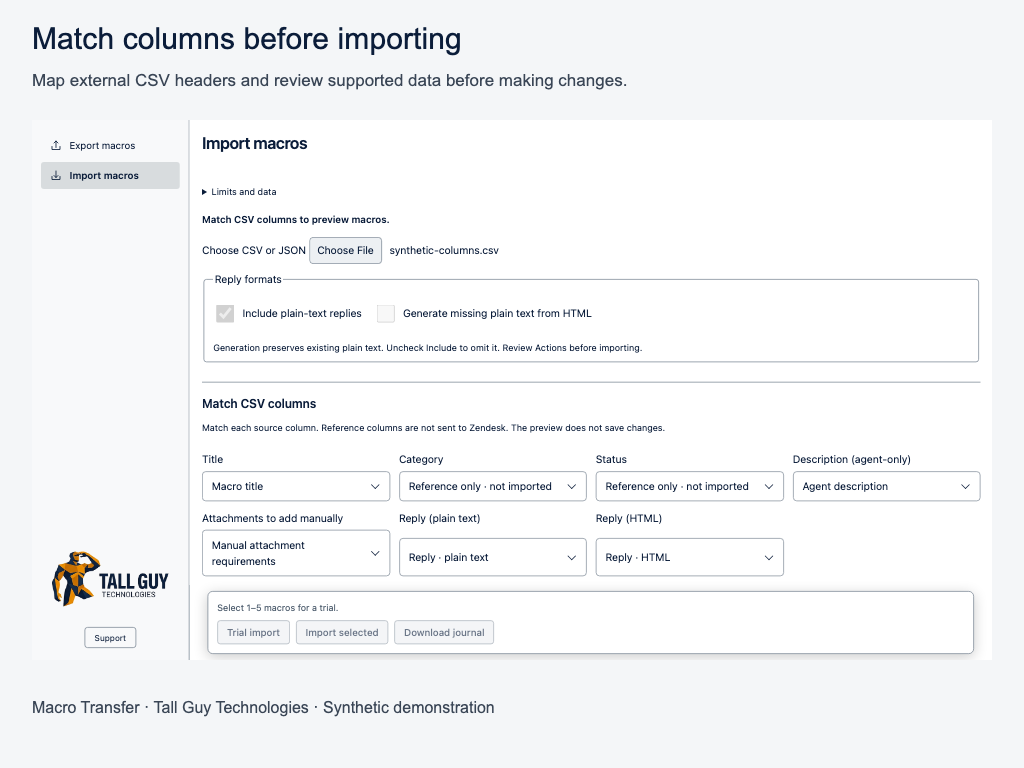
Changing reply options resets your selection and trial. That’s deliberate: the actions change, so you review and select the rows again.
Trial first, then import the rest
- Run a trialSelect 1–5 ready macros and choose Trial import. The confirmation shows the destination, how many will be created or updated, the imported state and the reply format.
- Check the trial in ZendeskOpen the linked results and check the content and state before you continue.
- Import the restSelect the remaining ready rows and choose Import selected. Skipped and blocked rows are never imported.
- Download the journalDownload it before you close or reload the app. It records every attempted change.
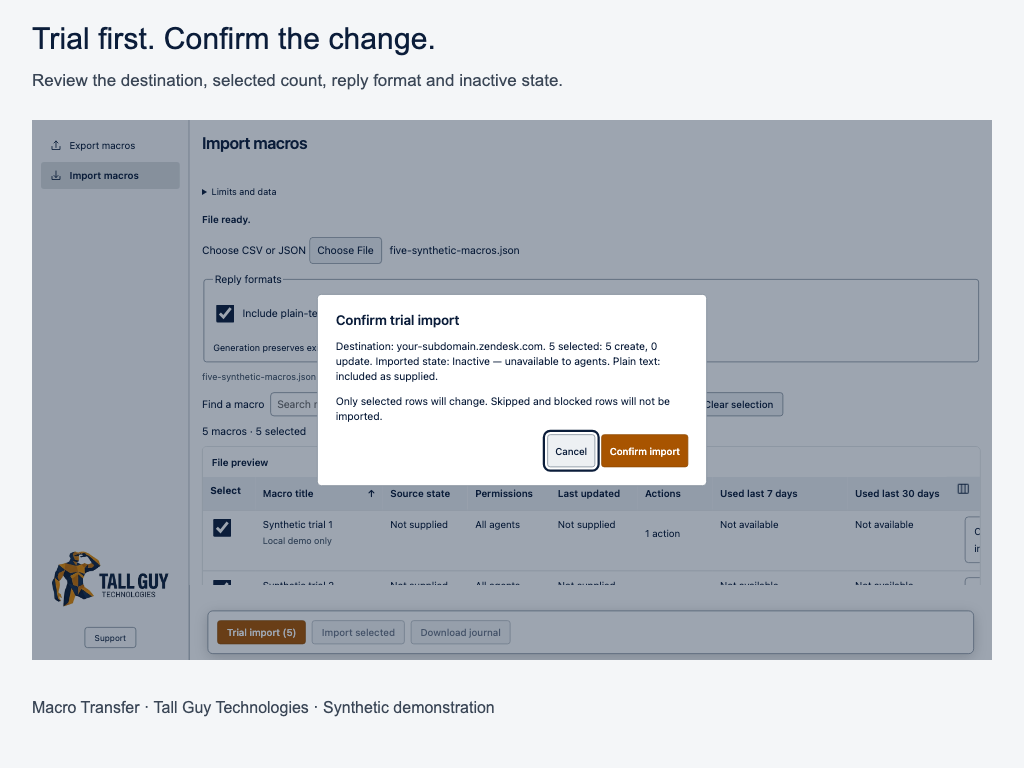
Moving 40 macros from a sandbox to production
- In the sandbox, export the 40 macros as JSON and keep the file unchanged as a backup.
- In production, import the file and leave the state as Inactive.
- Trial 3 macros, open them in Zendesk and check the wording and actions.
- Import the other 37 and download the journal.
- When the team is ready, switch the macros on in Zendesk, or import again as Active.
What can’t be transferred
Macro Transfer is built for portable macro actions. Some things depend on the account a macro came from, so they’re blocked or need manual work:
- Restricted macros whose groups or users don’t exist in the destination.
- Attachments, inline images and unresolved dynamic content.
- Category metadata and other account-specific actions.
- App-managed macros.
It doesn’t replay the order of macros in the destination, migrate a whole account or roll changes back automatically. Avoid editing the same macros in Zendesk while an import runs: the app checks before writing, but it can’t rule out changes made at the same moment.
Troubleshooting
| You see | What it means and what to do |
|---|---|
| This application requires a Zendesk administrator. | Ask an admin to run the export or import. |
| CSV needs an actions or actions_json column containing a JSON array; action text cannot be guessed. | Add an Actions (JSON) column, or map reply columns instead. |
| Multiple destination macros match this title | More than one macro in the destination has that title. Rename one in Zendesk, or change the title in your file. |
| Manual attachments required | The macro uses attachments. Add them in Zendesk after importing, or remove that row. |
| Destination changed after preview. Reload the file and review again. | Macros changed in Zendesk while you were reviewing. Upload the file again so the preview is current. |
| Some outcomes are uncertain. Check the journal and Zendesk before retrying. | A write may or may not have finished. Check those macros in Zendesk first. Retrying blindly could create a duplicate. |
| File exceeds 50 MB | Split the file into smaller batches. |
Common questions
Does Update replace the whole macro?
Update changes the description and the reviewed actions of the destination macro shown in the preview. Source IDs are never used to find destination macros.
Can I undo an import?
There’s no automatic rollback. Keep your unchanged export, check the trial in Zendesk, and use the journal to see exactly what changed.
Why are my new macros inactive?
Inactive is the safe default, so agents don’t see unfinished macros. Choose Active before importing, and acknowledge the live change, when they’re ready.
Does uninstalling remove the macros I imported?
No. Uninstalling doesn’t undo macro changes or delete files you downloaded.
Your data
The app reads your role, account context and macro configuration to prepare exports, compare matches and verify writes. Macro content, metadata and update before images are processed in browser memory and files you choose to download. Transfers use your signed-in Zendesk account. There is no publisher backend, analytics or AI service.
Files and journals may contain sensitive configuration. Closing or reloading clears the in-memory journal; downloaded files remain until you remove them.
Questions? Email support@tallguytechnologies.com. Share the error message and file structure, with sensitive macro content removed.