
How do I bulk-edit Zendesk macros in a spreadsheet?
Short answer
Export the macros to CSV with Macro Transfer, edit them in your spreadsheet, then import the file, match each column to a field and choose Update for macros you mean to change.
How to do it with Macro Transfer
- Export as CSVIn Export macros, select the macros and download CSV.
- Edit in your spreadsheetFix wording across many replies or tidy titles. Column names and order don’t matter.
- Import and match columnsChoose Import macros, pick the file, match each column to a field and select Preview mapped macros.
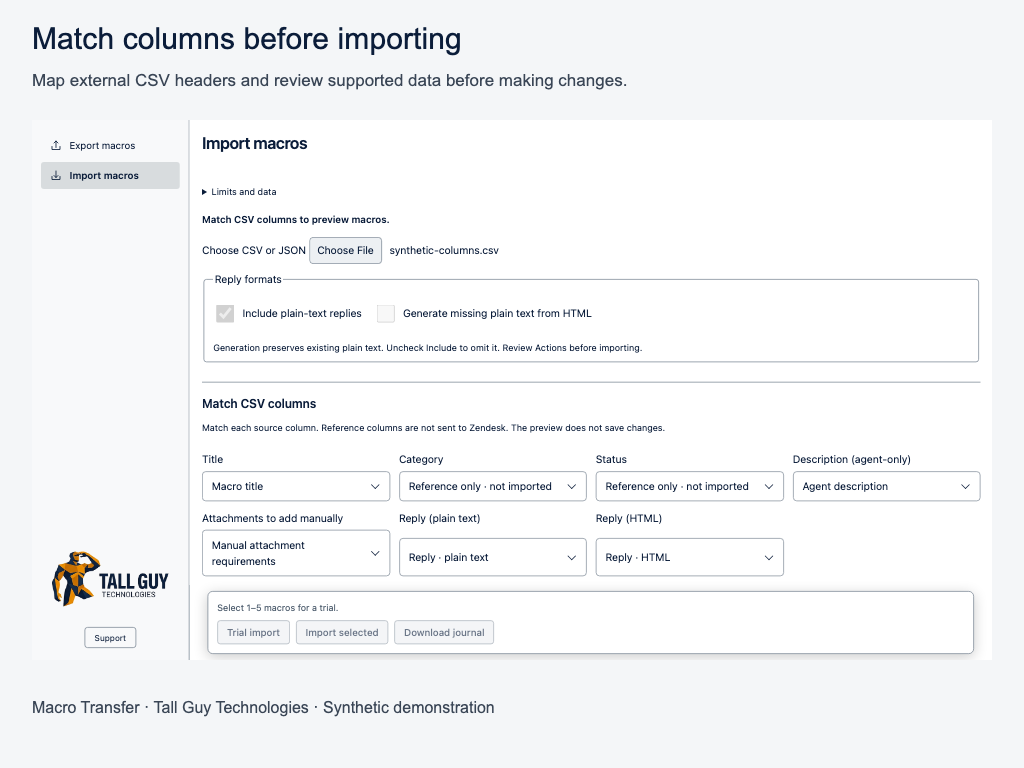
- Choose Update for matching titlesSkip is the default when a macro with the same title exists. Choose Update only where you mean to change it.
- Trial, then importTrial a few rows, check them in Zendesk, then import the rest.
Why it matters
Changing a phrase across forty macros in the Zendesk admin means forty edits. A spreadsheet lets you find, replace and review everything at once, and the preview shows exactly what will change before anything is written.
Tip: Use either an Actions (JSON) column or reply columns, not both. Without an Actions column the app builds the reply action from your reply columns.
 Macro TransferCopy and bulk-edit Zendesk macros · read the full guide
Screenshots use made-up companies, people and tickets.