
How do I import Zendesk macros without agents seeing them yet?
Short answer
Macro Transfer imports new macros as Inactive by default. Leave that setting as it is, run a trial on a few macros, check them in Zendesk, and switch them on when the team is ready.
How to do it with Macro Transfer
- Import your fileChoose Import macros and pick your JSON or CSV file.
- Leave the state as InactiveChoose Active only when the macros are ready for agents.
- Run a trialSelect 1–5 ready macros and choose Trial import. The confirmation shows the destination, the counts and the imported state.
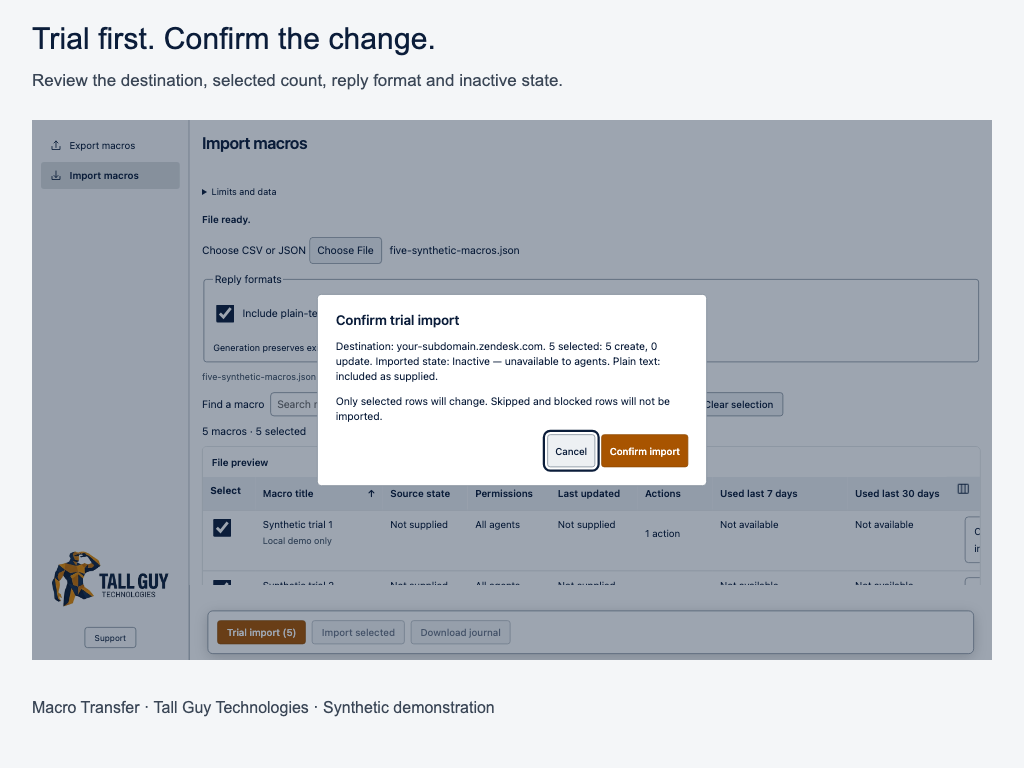
- Check the trial in ZendeskOpen the linked results and check the content and actions.
- Switch them on laterActivate the macros in Zendesk, or import again as Active.
Why it matters
A half-finished macro that goes live for every agent can send the wrong reply to customers within minutes. Importing inactive gives you time to check wording and actions first.
Tip: There’s no automatic rollback. Keep your unchanged export and the journal, which records every attempted change.
 Macro TransferCopy and bulk-edit Zendesk macros · read the full guide
Screenshots use made-up companies, people and tickets.